Home › Forums › Help and Support › Asus PA27UCGE factory testing report
- This topic has 11 replies, 3 voices, and was last updated 7 months, 1 week ago by
 Vincent.
-
AuthorPosts
-
2025-11-29 at 12:14 #145045
Hi.
I recently bought Asus PA27UCGE monitor. Its specification states delta E <1. It also has built-in calibration tool at the bottom.
However included color calibration testing report says DCI-P3 delta is 1.27, Adobe RGB 1.29, sRGB of 0.96. Some colors in graph are way off, like green above 4 in two tests.
Does this mean I lost the lottery and got bad item? Should I return it and get a different sample?
Or is it fixable with inluded calibration tool? They probably used better tools at the factory and it still does not reach promised levels.

Attachments:
You must be logged in to view attached files.2025-11-29 at 13:47 #145047Hi.
I recently bought Asus PA27UCGE monitor. Its specification states delta E <1.
“Mean” value less than X
However included color calibration testing report says DCI-P3 delta is 1.27, Adobe RGB 1.29, sRGB of 0.96. Some colors in graph are way off, like green above 4 in two tests.
mid-high dE vs certain colorspaces could be due to:
-out of gamut, for example if your diplay is 93% P3 because native green is a little less saturated than P3 green 255. Same on econdaries if primary is out of gamut. That is “normal”
-grey. dE is a “sum” of brightness error and color tint error. dE is an scalar you you cannot now how much on each part unless you remeasure.
If most of the error is due grey color tint it means bad grey calibration and it is solved with a colorimeter and calibration in GPU. ArgyllCMS is waaaay ahead of oyher calibration solutions solving these issues.Does this mean I lost the lottery and got bad item? Should I return it and get a different sample?
All this stuff is correctible.
Uniformity issues are not correctible. Crippled native contrast is not correctible. So measuring these things should be the first ones in the to do list.
If you cannot measure, use a full screen 255 white field on the biggest gamut OSD preset (usually Standard, User, Custom… those names).
Look for green or pink areas in the white field vs the white center. If you do not like what you see, return fo refund.I would not return a unit with excellent color uniformity and > 800:1 contrast ratio at native white, just because a sub optimal grey calibration in sRGB mode.
It also has built-in calibration tool at the bottom.
It is useless if color uniformity is bad.
Even uniformity is perfect you won’t be able to measure thousands of patches for LUT3D because of the speed and it’s likely taht you won’t be able to use it with 3rd paty software (maybe lightillusion).
Don’t get a display with integrated colorimeter because you think you are saving money because you do not have to buy a colorimeter. That’s false. Integrated colorimeters are useful on a company/room with several displays because you can schedule periodic calibrations on resting hours.-
This reply was modified 7 months, 2 weeks ago by Vincent.
2025-11-29 at 21:20 #145050Look for a discounted Eizo CS2731. If you can buy one 20-25% cheaper, there’s no point in keeping that Asus.
2025-11-29 at 22:55 #145051Thank you, Vincent.
I didn’t noticed anything wrong on white uniformity test, or in grey in Eizo online tool. But I’m not experienced in these kind of things, and my eyes are tired. It is only my second LCD monitor after having CCFL backlit Dell U2311h for many years.
But there is quite a backlight bleed, especially in lower left corner.
Attachments:
You must be logged in to view attached files.2025-11-29 at 23:10 #145054Unfortunately, all you can do is return it and buy either a Sharp/NEC EA272Q/U, or a discounted Eizo CS2731.
Both the Sharp/NEC and the Eizo are hardware-calibrated, but the former can be calibrated and recalibrated only at an authorized service center/dealership.
2025-11-29 at 23:12 #145055This will be monitor for general home use. Personal photo editing, web, some gaming. Asus has better specs for that: 4k vs 1440p, 160 Hz vs 60, 5 ms vs 16 ms. And CS2731 costs 60% more.
2025-11-30 at 11:19 #145056The NEC/Sharp EA272U (4K) could also work for you, since it has the same response time (5 ms):
NEC’s only downside is a lower refresh rate (60 Hz vs 160 Hz) but it’s much better than the Asus in every other aspect.
2025-11-30 at 13:38 #145057This will be monitor for general home use. Personal photo editing, web, some gaming.
This is your intended use, but that Asus PD is an ultra low cost widgemaut monitor for photographers.
Asus has better specs for that: 4k vs 1440p, 160 Hz vs 60, 5 ms vs 16 ms. And CS2731 costs 60% more.
Eizo has an overall better specs because it has a reliable HW calibration and perfect color uniformity without using uniformity compensation
BUT… this overall better specs by Eizo (and real world behavior) may not be in your interest vs UHD and faster response times so that PD may be the sensible choice in your case.
Thank you, Vincent.
I didn’t noticed anything wrong on white uniformity test, or in grey in Eizo online tool.
That is where an external colorimeter is handy.. to test these things. But anyway, let’s suppose that you only have at your disposal what this monitor offers you + asus software, nothing more.
Task to do:
-white & grey field full screen, check for color tints. Evaluation is visual and thus sbjective. => PASS (from your own report)
-Disable windows aut color management (ACM) and disable HDR (it’s useless unless display is FALD and it does not seem so), so you’ll be working on whatever colospace display has on each preset, non color managed for desktop
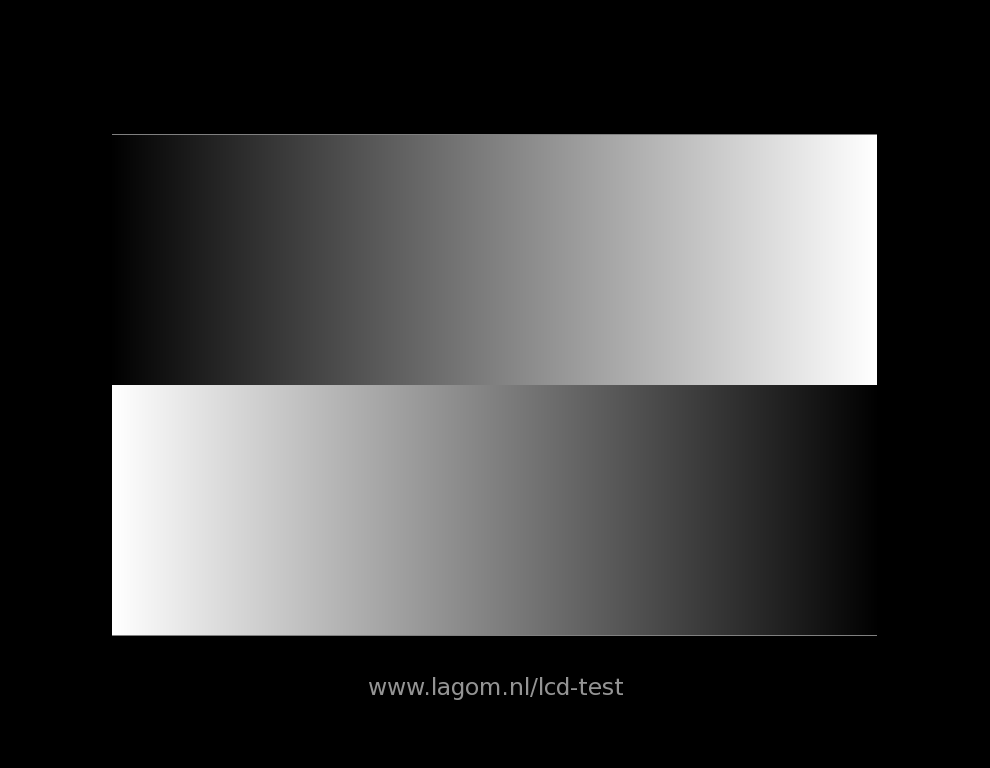
-Download this test image http://www.lagom.nl/lcd-test/img/gradient-h.png and open it in MS Paint. PAINT, not photoshop, not gimp, not whatever you use. PAINT, non color managed with HDR disables and no windows ACM
-Evaluate this image on NON factory calibrated presets (for example some User mode with access to RGB gains and such). Look for color tint in gradient.
This is uncalibrated response. It depends on quality control (QC) the worse it is the more difficult will be for Asus app to calibrate it using the typical small patch set they use for calibrating.
-Now use Asus calibration software and calibrate to native gamut (full colorspace) and for exampel a typical scenario: whiteopoint D65, 120nit, gamma 2.2.
After calibration go to Paint and look for color tints in that PNG gradient. Whatever issue you see, Asus software is not able to correct it. It can be corrected with ArgyllCMS and an i1displaypro for example, because argyllcms can take a lot of grayscale calibration patches.If all looks good by visual evaluation, then it’s good since you lack of other equipment o appraise monitor behavior in an objective way.
Also it’s possible that Asus hardware calibration suite can use internal colorimeter to evaluate AFTER calibration results. If this is possible, choose the validation testchart with more greyscale patches and measure it. Look for color tint in those numeric results, or share them to us. It’s looking for deviations from a*b* = 0 in grey scale, with special interest on a* axis (green-pink)
-
This reply was modified 7 months, 1 week ago by Vincent.
Calibrite Display Pro HL on Amazon
Disclosure: As an Amazon Associate I earn from qualifying purchases.2025-11-30 at 17:15 #145060Thank you for taking time to explain.
It stopped at disabling ACM, cause there is no tickbox at Advanced Display Settings to disable it. Or no ColorManagement folder in regedit where it should be according to the guides. I’m using Windows 10 Pro. If I continue to display adapter properties > Color Management tab and click on only available button it opens Color Management app. It lists icm profiles associated with this monitor, all by Asus. Asus_DIsplay_DCIP3 is selected as default, as I chose this preset in monitor menu / or their widget app.
I attached screenshots of CM tabs, maybe you could spot something there.
The preset that allows me to change gamma, color gains is named Native, monitor arrived with it as default. It is too bright to use, blinding with white background, even when lowered from 200 to 120 brightness. Widget screenshot also attached.
Attachments:
You must be logged in to view attached files.2025-12-01 at 9:01 #145066Thank you for taking time to explain.
It stopped at disabling ACM, cause there is no tickbox at Advanced Display Settings to disable it. Or no ColorManagement folder in regedit where it should be according to the guides. I’m using Windows 10 Pro. If I continue to display adapter properties > Color Management tab and click on only available button it opens Color Management app. It lists icm profiles associated with this monitor, all by Asus. Asus_DIsplay_DCIP3 is selected as default, as I chose this preset in monitor menu / or their widget app.
ACM is a W11 feature. One les problem to worry about if you are in W10.
I attached screenshots of CM tabs, maybe you could spot something there.
The preset that allows me to change gamma, color gains is named Native, monitor arrived with it as default. It is too bright to use, blinding with white background, even when lowered from 200 to 120 brightness. Widget screenshot also attached.
Regarding Asus software it should have some measurement features, otherwise the “It also has built-in calibration tool at the bottom.” you named is useless.
IDNK that software, it should be in its manual.2025-12-01 at 11:09 #145067There is dedicated app for that, ProArtCalibration. It has preset mode and User mode with more controls. Screenshots included.
Am I correct to choose DCI-P3 as default space for everything? sRGB is smaller one, Adobe RGB is more for printing stuff. There is ability in their DisplayWidgetCenter to select different preset for any application, if needed.
Attachments:
You must be logged in to view attached files.2025-12-01 at 17:27 #145071“Standard” D65 g2.2 which is supposedly “native gamut”. Check how it is gradient on Paint right now on that preset. Then HW calibrate using internal colorimeter and take a look on the gradient later, also if after calibration contains a report, look for greyscale a*b*, abnormal low conytrats values and such things.
Without an external menasurement tool for DisplayCAL this is all you can check visually or with Asus tools. -
This reply was modified 7 months, 2 weeks ago by
-
AuthorPosts